
Where to find this
HotelConnext › Portfolio › Open your hotel › Inventory › Inventory calendar › Bulk editor
For: team members allowed to manage inventory and rates.
Step 1 — Open the Inventory calendar #
Open Inventory → Inventory calendar and choose the dates and metrics you need to see.
Step 2 — Choose a cell or use Bulk editor #
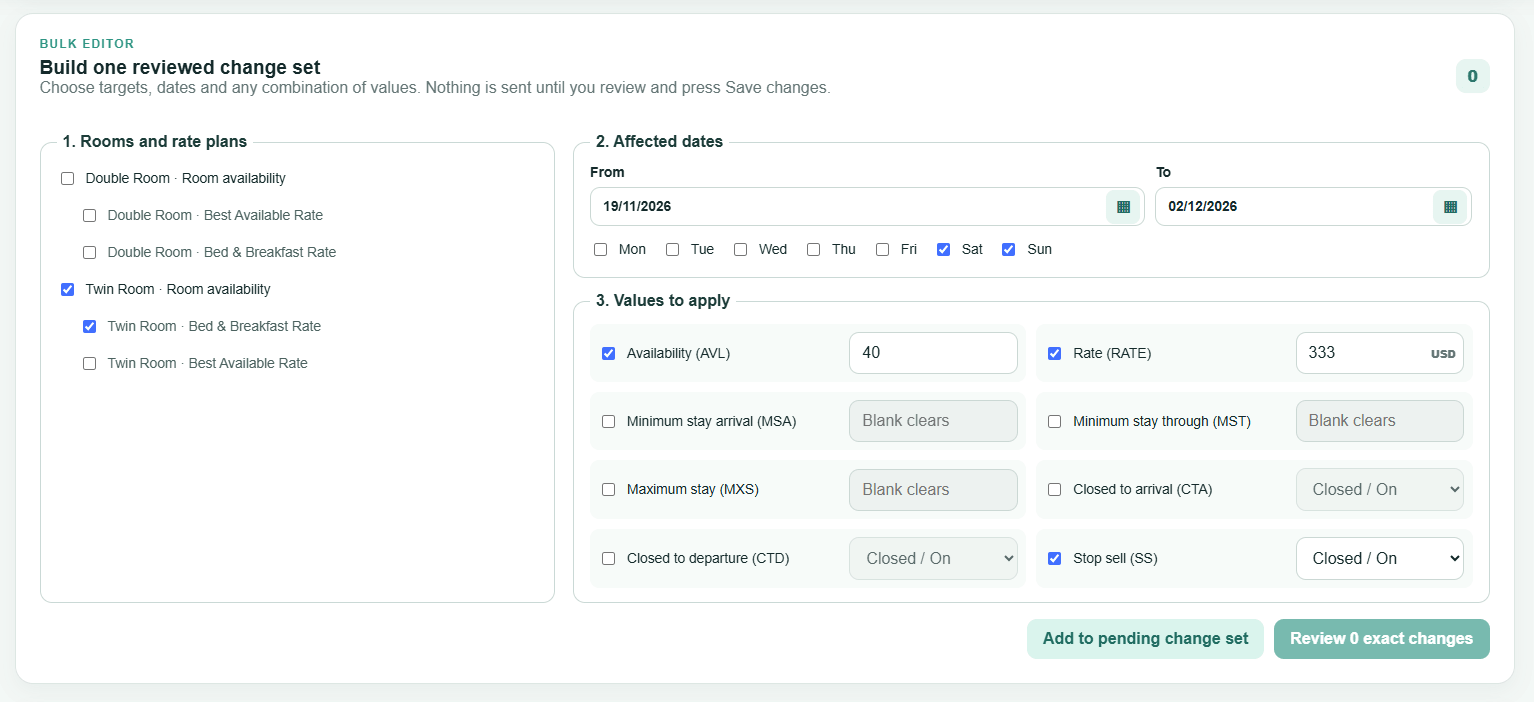
For a small change, edit the relevant calendar cell. For many dates, use Bulk editor: choose room and rate-plan targets, affected dates and weekdays, then select only the values to apply.
Step 3 — Review the exact pending changes #
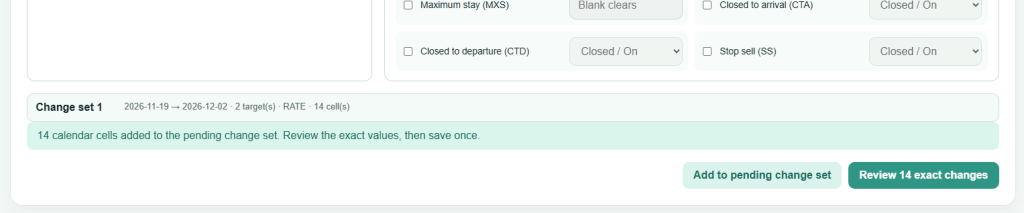
Choose Add to pending change set, then Review exact changes. Inspect every affected date and field. Hidden or unchanged fields are omitted.
Step 4 — Save and verify the result #
Select Save changes. Wait for the success message, then check the new values and delivery status. A fresh change set can be started without reloading the page.

Stop Sell closes sales on the selected rate plan; changing availability and changing Stop Sell are different actions. Verify the resulting dates in each active OTA when the change is urgent.


